Help · Account and help
Two-step sign-in: set it up, and what to do if you lose your phone
After your password, you type a 6-digit code from an app on your phone. Who has to use it, how to set it up in about two minutes, what recovery codes are for, and how to get back in if you lose your phone.
Checked against the app on
Two-step sign-in means two things get you in: your password, then a 6-digit code from an app on your phone. Someone who steals your password still can't get in.
Who needs it
| Your role | Two-step sign-in |
|---|---|
| Owner or label manager, in any band you belong to | Required |
| Artist, contributor or viewer | Your choice |
If your role needs it, the app takes you to the set-up page the first time you sign in. The rest of the app stays closed until it's on. See roles.
Set it up
It takes about two minutes. You need your phone and a free authenticator app, such as Google Authenticator, Microsoft Authenticator or 1Password.
- Owners and label managers land on Two-step sign-in by themselves. Anyone else: click your name at the top of any page, then Two-step sign-in: off at the bottom.
- Type your password and press Set it up.
- In your authenticator app, add an account and scan the QR code with your phone's camera. Can't scan it? Choose “enter a setup key” in the app and paste in the key from the page.
- Type the 6-digit code your app now shows, and press Turn it on.
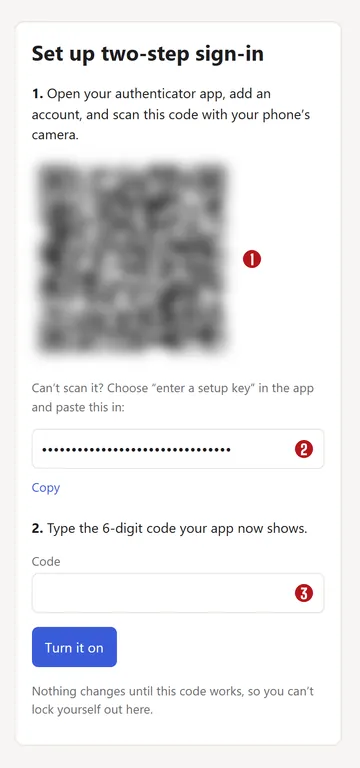

Nothing changes until that code works, so you can't lock yourself out on this page.
Save your recovery codes
Next you get ten recovery codes. If you lose your phone, these are how you get back in. Each one works once, and you won't see them again.
- Press Copy or Download as a text file.
- Keep them away from your phone: printed in a drawer, or in a password manager.
- Tick I've saved these somewhere safe and press Continue. The app stays closed until you do.
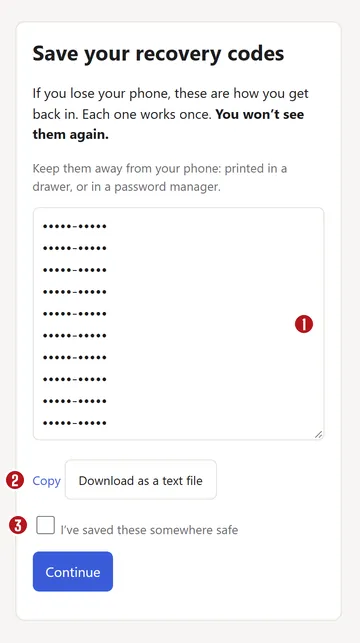

The Two-step sign-in page counts how many you have left, and warns you at 3 or fewer. Make new codes gives you a fresh set and stops the old ones working. It asks for your password and a code.
Sign in with a code
- Sign in with your email and password as usual.
- On One more step, type the 6-digit code from your app and press Sign in.
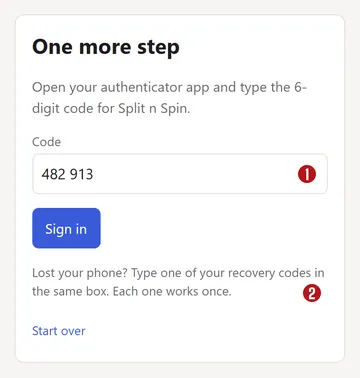

The code changes every 30 seconds, and each one works once. You have 10 minutes after your password to type it. After that, start again from your password.
Tick Keep me signed in on the sign-in page, and that browser skips the code for 30 days. Don't tick it on a computer other people use.
If you lose your phone
You still have your recovery codes:
- Sign in with your password.
- Type a recovery code in the same box as the 6-digit code, and press Sign in.
- You land on Two-step sign-in. Press Move to a new phone (or Turn it off, if your role lets you). Only your password is asked for, because you've just used a recovery code.
- Set it up on the new phone, and save the new recovery codes.
We email you each time a recovery code is used, and say how many you have left.
You've lost your phone and your codes: email [email protected] from the address you sign in with. We confirm it's really you first, by a video call or a phone number we already have, and then reset it by hand. You'll set it up again the next time you sign in. This is slower on purpose: someone who says they've lost everything is exactly what a thief with your password would say.
There's no reset by email. Anyone holding your inbox could use one to skip the code.
Move to a new phone, or turn it off
Open Two-step sign-in, type your password and a code, then:
- Move to a new phone stops the old phone's codes and takes you straight to setting up the new one. That's the only choice for owners and label managers.
- Turn it off is there for artists, contributors and viewers. You can set it up again at any time.
Turning it on or off signs out every other browser, and ends any Keep me signed in there.
We email you whenever two-step sign-in is turned on, turned off or reset on your login. You can't switch those emails off. If one wasn't you, change your password straight away, then tell us.
Questions
My code doesn't work.
Wait for the next code and try that one. Check that your phone sets its clock automatically: a clock that's far out makes every code wrong. After 5 wrong tries in a minute, or 20 in an hour, you'll have to wait a little before trying again.
Can the code come by text message or email?
No. It comes from an authenticator app, or you use a recovery code. Text messages can be redirected, and an email code would let anyone holding your inbox get in.
Do my bandmates have to use it?
Only owners and label managers. Artists, contributors and viewers can turn it on if they want to.
I've forgotten my password as well.
Forgot your password? on the sign-in page still works, and it doesn't change two-step sign-in. You'll need your code or a recovery code after the new password.
Do I need the code to sign a split sheet?
No. Split sheets are signed from a private link that needs no login. See Splits.
About the picturesThey show Copper Kettle, the made-up band from our guide. Every name, code and dollar in them is invented. Numbered red dots on a picture match the numbered steps.