Help · Release music
Edit your catalog: releases, tracks, songs and undo
Change a release, track or song after it exists, see every edit in its history, and undo one. What's locked for good, what happens on a live release, and how to take back a split you proposed.
Checked against the app on
New releases start in the wizard. Once a release exists, including anything you brought in with the importer, you change it here. Every save goes into a history, and most can be undone.
Owners and label managers can edit everything. An artist login can edit the releases of the artist names it's linked to. Viewers and contributors can't edit.
Edit a release
- Open the release and press Edit.
- Change what you need: the title, version, artist, type, dates, genre, language, explicit setting, label, ℗ and © lines, and notes.
- Press Save changes.
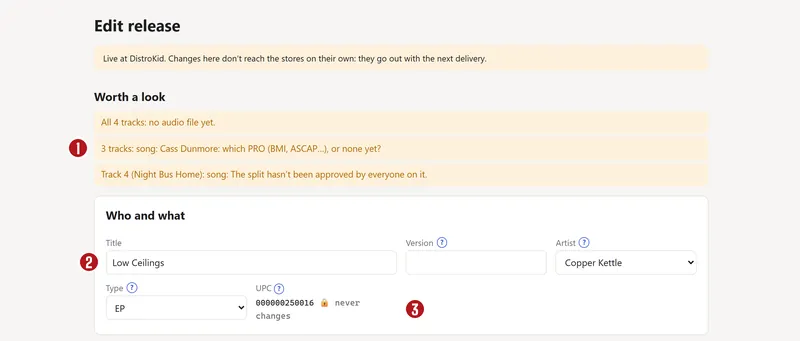

The Tracks list is lower down the same page:
- ↑ and ↓ change the track order.
- Remove takes a track off this release. The recording stays in your catalog, and Undo brings it back. You can't remove a track from a live release: take it down at the distributor first.
- Add a track takes a title, and an ISRC if it already has one. An ISRC that's already in your catalog adds that same recording.
Edit a track
Press Edit beside a track on the release page, or its title in the Tracks list. Here you change the title, version, artist name, explicit setting, language, ℗ line, the song it's a recording of, featured artists, other credits, lyrics and notes.
Other credits go one per line, as Role: Name, like Producer: Sam Lee.
If a recording is on more than one release, the page says so, and a change applies to all of them.
Edit a song
The song is what was written, apart from any one recording of it. Press Edit the song on its split page or its track's page. Here you set the title, the ISWC (the song's ID number), other titles, and whether it's a cover, with its licence.
Splits are changed on the song's split page: see below.
What's locked, and what stops a save
ISRCs and UPCs never change. Stores track play counts and money by these codes, so a set code shows a padlock, with no box to type in. An empty code can be filled in once, if it's valid and not used anywhere else in your catalog. It locks from then on, so check it first.
These stop a save, and the page says why:
- a release with no title or artist, or a track or song with no title
- a UPC or ISRC that isn't valid, or that's already used in your catalog
- an ISWC that isn't valid (it looks like T-123.456.789-0)
Worth a look at the top of a page lists things to check: no release date, a code that fails its check, a track count that doesn't fit the type, “feat.” in a title, ALL CAPS titles, a cover with no licence, a writer with no PRO, or splits not approved yet. These never stop a save.
What an edit changes, and what it doesn't
- A live release. Your edit changes the record here. The stores keep what they were sent until the next delivery, and the page says so.
- Approved fixes. A title fix approved in Fixes still wins in the next delivery, and the edit page says so when one applies.
- Split sheets. Changing a title, or anything else printed on a sheet, voids that sheet, and the save message says so. Everyone signs the new one.
- A release under review. Some changes mean a person needs to look again.
See the history, and undo a change
Press History on the release page. It lists every change to the release, its tracks and their songs, newest first: who, when, and each field's old and new value. Each edit page shows its own recent edits too.
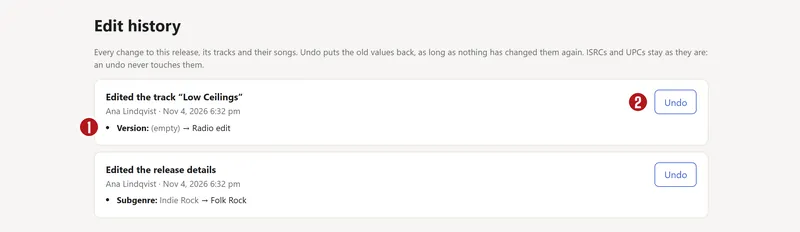

Undo puts the old values back:
- It stops if one of those fields has changed since, whoever changed it: undo the newer change first.
- An undo is itself an edit, so you can undo an undo.
- It never touches an ISRC or UPC. An edit that only set a code has no Undo button.
- It won't take a track off a live release.
Changes made in the wizard, the store grid or Fixes don't go in this history, so Undo can't reverse them. They can still stop an undo, as a change made since.
Take back a split you proposed
An approved split is never edited or undone. A change is always a new version that everyone approves, as Splits explains. Two buttons help, under History on the song's split page:
- Withdraw this proposal takes back an open version and brings back the open version it replaced. It's for the person who proposed it, or a manager. Once everyone has approved a version, it can't be withdrawn.
- Start a new version from these numbers on an older version fills in the form with its shares, so you don't retype them. That new version goes to everyone for approval, like any other.
Questions
I typed the wrong ISRC or UPC. Can I fix it?
Not in the app: once saved, a code is locked for good, so check it before you press save. If you've saved a wrong code on a release that hasn't gone out, email us before you send it, and we'll work out what to do.
Why hasn't my change shown up on Spotify?
Edits change the record here. The stores keep what they were sent until the next delivery.
Why won't Undo work?
One of the fields has changed since that edit. The message says so. Undo the newer change first, or just edit the field again.
Can I delete a release or a song?
Not in the app. You can take a track off a release that isn't live. To remove a whole release, email us.
Can I edit on my phone?
Yes. The edit pages work on a phone.
About the picturesThey show Copper Kettle, the made-up band from our guide. Every name, code and dollar in them is invented. Numbered red dots on a picture match the numbered steps.