Help · Set up your band
Create your band and invite bandmates
Make your band’s account, confirm your email, work through the seven set-up steps, invite each bandmate with their own login, and pick the right role for everyone.
Checked against the app on
One account holds the whole band: its releases, songs, splits and money. Each bandmate gets their own login to it, so everyone sees the same numbers. One price covers everyone, so adding bandmates costs nothing.
Make the band’s account
During the beta, sign-up is by invite: we email a link to bands on the waitlist. The link works for 14 days. Without one, the page says “Sign-up is by invite for now” and offers the waitlist instead.
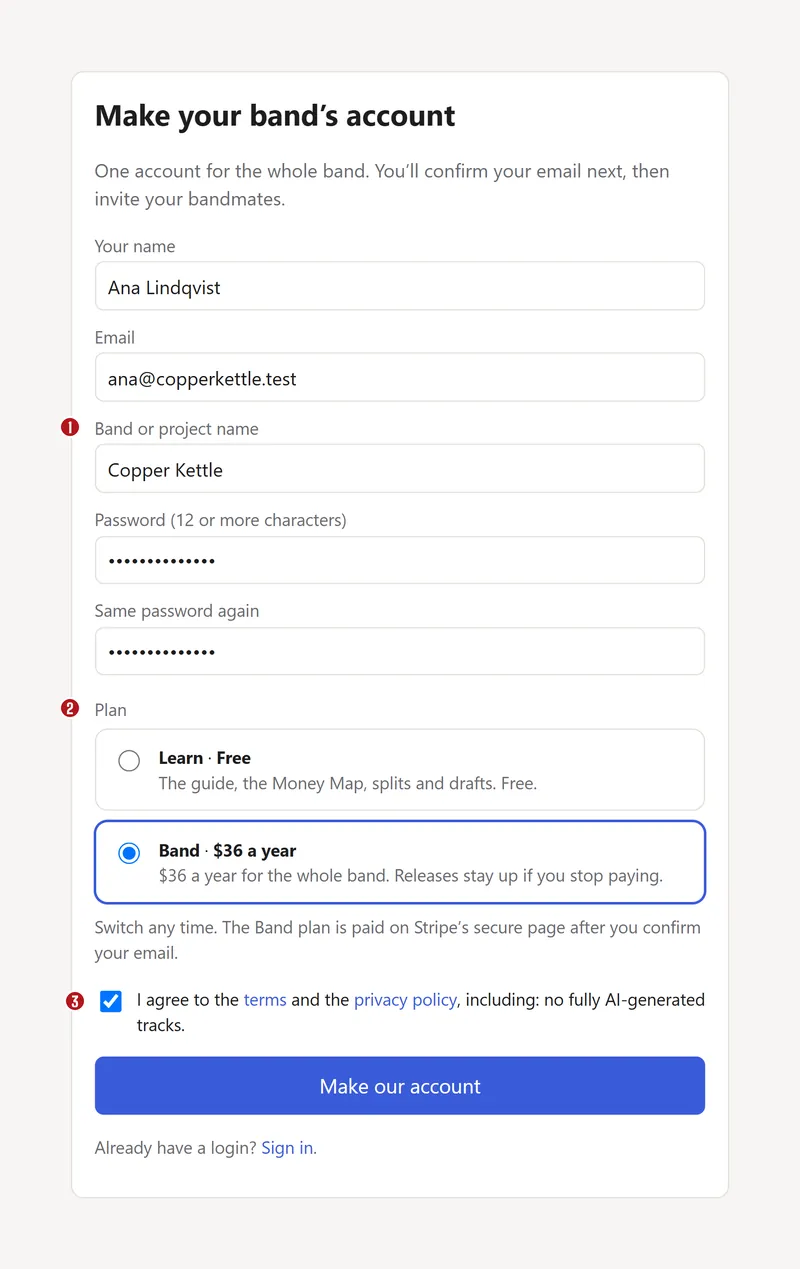

- Open the link in the invite email.
- Fill in Your name, Band or project name (exactly as the stores should show it) and a password of 12 or more characters, twice. The email is filled in from your invite.
- Pick a plan: Learn (free) or Band ($36 a year). Everyone starts on Learn; picking Band shows a Pay $36 a year button once you're in. See Billing and plans.
- Tick the box to agree to the terms and privacy policy. That includes one rule worth knowing now: fully AI-generated tracks aren't accepted. AI-assisted tracks are, when you say so on the release.
- Press Make our account.
You're the band's owner. The app also makes an artist name with the band's name, and a person record for you.
Confirm your email
Next you'll see Check your email. Open the email on the same device and press its link within 60 minutes. Nothing else in the app opens until you do. No email? Check the spam folder, then press Send a new link.
The seven set-up steps
The link takes you to Get set up. It shows how many steps are done and ticks each one off as you go. Owners and label managers see it; you can come back to it from the home page.
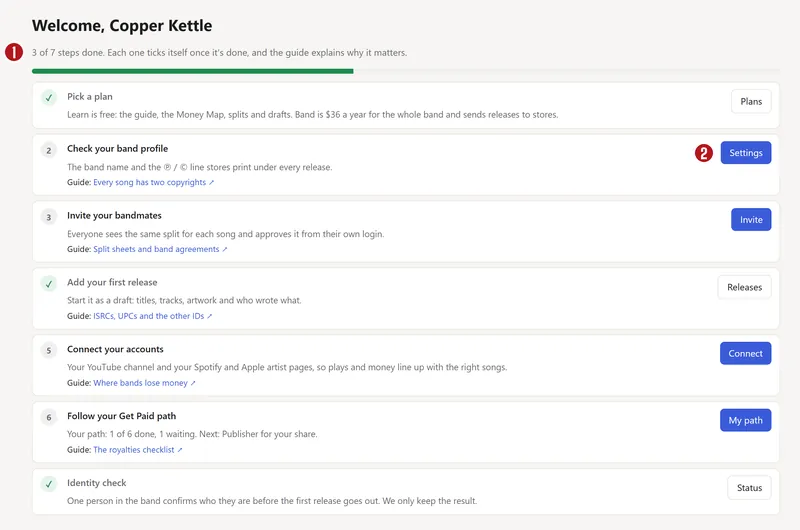

- Pick a plan. Done once you've chosen Learn, or paid for Band.
- Check your band profile. In Settings, check the label name (stores print it on the ℗ and © lines under every release) and save once.
- Invite your bandmates. See below.
- Add your first release. Start one in the release wizard, or bring your catalog.
- Connect your accounts. Link your YouTube channel, or add the band's store profiles.
- Follow your Get Paid path. Your own list of the sign-ups that collect a songwriter's and performer's money. See The Money Map.
- Identity check. Only on the Band plan: we check the account holder's identity once, before the first release goes out. We keep only the result.
The first time you open the home page, a five-part tour explains releases, splits, store checks, the Money Map and the Get Paid path. Close it any time; Take the first-release tour brings it back.
Invite your bandmates
Owners and label managers can invite people. There are two ways in:
- Logins (in the menu) → Invite someone: type their email, pick a role, and press Send invite.
- A person's page under People → Invite them to log in: pick a role and press Make invite link. This links the login to that person's songs and shares straight away.
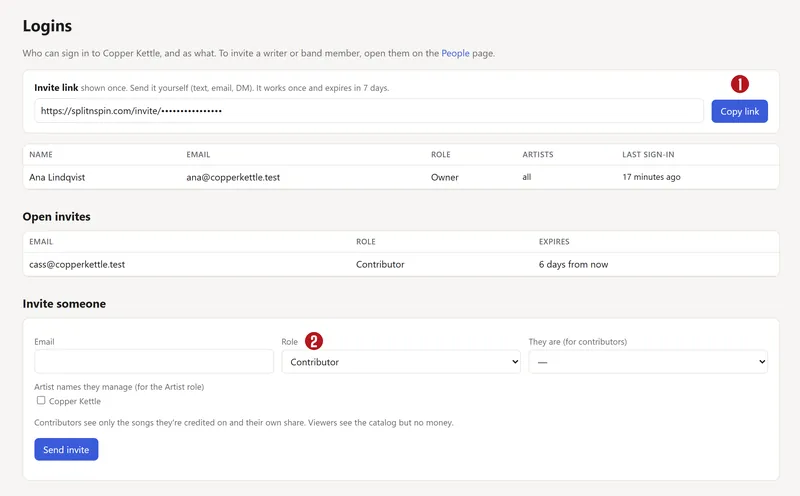

The app shows the invite link once, with a Copy button, and emails it too. Each link works once and lasts 7 days. Open invites on the Logins page lists links not used yet and when each expires.
Your bandmate opens the link, types their name and a password of 12 or more characters (or their existing password, if they already have a login), and presses Accept invite.
Roles: who can do what
| Role | Can | Can't |
|---|---|---|
| Owner | Everything, including the plan and billing, and inviting other owners. | |
| Label manager | Run everything day to day: releases, people, statements, settings, invites. | Pay or cancel the plan, invite owners. |
| Artist | Start releases, edit the releases of the artist names they're linked to, see the money and the Money Map, propose splits, use the marketing kit on the Band plan. | Edit other artists' releases, invite people, see statements. |
| Contributor | See the releases and songs they have a share in and the money from them, approve or reject their splits, propose a split, keep their own details and Get Paid path up to date. | See the rest of the catalog or the band's analytics. |
| Viewer | See the whole catalog. | See any money, propose splits. |
Most bands make each member an Artist or a Contributor. A session player who's on one song is a Contributor. A manager or a bandmate who does the admin is a Label manager.
If you're in more than one band
Accept each band's invite with the same login. An Account list then appears in the header; pick a band to switch to it. A login that isn't in any band yet sees “Your login isn't part of any account yet. Ask the owner for an invite.”
Questions
Do bandmates need to pay?
No. The plan is one price for the whole band, however many people are in it. Inviting a bandmate is free, and so is every login.
Can a bandmate who isn't on the account sign a split?
Yes. Split sheets are signed from a private link that needs no login. See Splits.
My invite link says it has expired.
Links last 7 days and work once. Ask the band's owner or manager to make a new one.
Which role should my bandmates have?
Give Artist to members who put out releases, and Contributor to anyone who only needs to see and approve their own songs and money. Keep Owner to one or two people: owners control the plan and billing.
Can I change the role of someone already invited?
Not yet. There's no button for it in the app. Email us and we'll change it.
About the picturesThey show Copper Kettle, the made-up band from our guide. Every name, code and dollar in them is invented. Numbered red dots on a picture match the numbered steps.